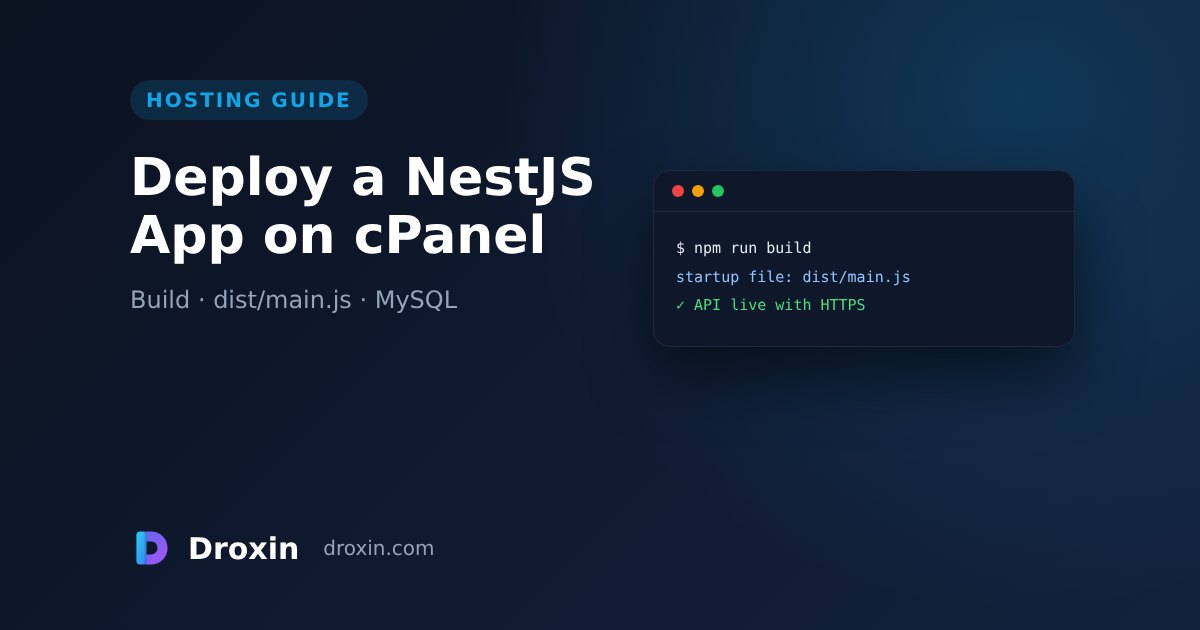
Short answer: build the NestJS app (npm run build), upload it with its package.json, create an app in cPanel's Setup Node.js App with the startup file dist/main.js, run NPM Install, and make main.ts listen on process.env.PORT. Phusion Passenger then runs it on your domain with free SSL.
Before you start
- A cPanel account with Setup Node.js App (CloudLinux Node.js Selector). If you can't find it, read "Setup Node.js App" missing in cPanel.
- A domain or subdomain for the API, for example
api.example.com. - A Node.js version your Nest release supports (NestJS 10: Node.js 16 or newer; NestJS 11: Node.js 20 or newer) that is listed in Setup Node.js App on the server, and the same major version on your computer.
1. Listen on Passenger's port
In src/main.ts:
async function bootstrap() {
  const app = await NestFactory.create(AppModule);
  app.enableShutdownHooks();
  await app.listen(process.env.PORT ?? 3000);
}
bootstrap();
A fixed port (app.listen(3000) only) is the most common reason a Nest app shows 503 on cPanel.
2. Build on your computer
npm ci
npm run build        # creates dist/main.js
The Nest CLI and TypeScript are dev dependencies. Building locally keeps the server install small and avoids running out of memory on a 1 GB plan. Upload dist/, package.json and package-lock.json (not node_modules) to a folder outside public_html, for example ~/api, with File Manager, SFTP or git over SSH.
3. Create the app in cPanel
| Field | Value |
|---|---|
| Node.js version | The same major version you build with |
| Application mode | Production |
| Application root | api |
| Application URL | api.example.com |
| Application startup file | dist/main.js |
Add your environment variables in the same screen — DATABASE_URL, JWT_SECRET and so on — then click Run NPM Install and Restart.
Rather skip the setup? Node.js hosting with cPanel from $2.50/mo — always on, database included, and we fix the app if it won't start.
4. Database
Create a MySQL/MariaDB database and user in cPanel → MySQL Databases. With TypeORM use type: 'mysql' and host: 'localhost'; with Prisma set provider = "mysql" and DATABASE_URL="mysql://user:password@localhost:3306/dbname". Run migrations over SSH after entering the app's environment (cPanel shows the source …/activate command at the top of the app screen):
cd ~/api
npx prisma migrate deploy     # or: npx typeorm migration:run -d dist/data-source.js
5. Deploying an update
npm run build                # on your computer
# upload dist/ (and package*.json if dependencies changed)
# Run NPM Install if dependencies changed, then Restart — or over SSH:
touch ~/api/tmp/restart.txt
What works and what doesn't
- Works: REST and GraphQL APIs, guards, pipes, Swagger, TypeORM/Prisma with MySQL, scheduled tasks run by cPanel cron.
- Not a fit on shared hosting:
@nestjs/scheduleintervals that must fire while the app is idle (use cron instead), WebSocket gateways with many long-lived connections need a VPS. A Bull/BullMQ worker can run with PM2 over SSH against an external Redis, within your plan's RAM — see Passenger vs PM2.
Troubleshooting
- 503 / Incomplete response — wrong startup file or fixed port; see Node.js 503 on cPanel.
- Cannot find module '@nestjs/core' — NPM Install hasn't run in this app folder.
- Killed / out of memory while building — build on your computer instead (step 2).
Droxin Node.js hosting includes Setup Node.js App, SSH and MySQL on every plan. If your Nest app won't start, our Node.js app fix is a fixed price agreed before we start.