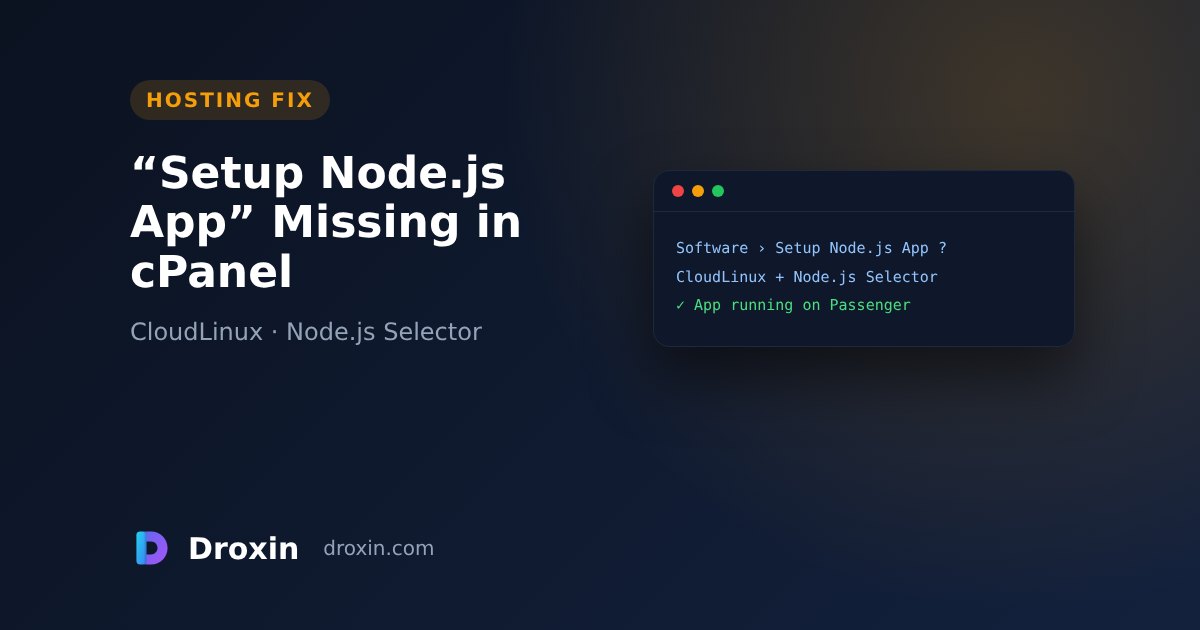
Short answer: "Setup Node.js App" is not part of plain cPanel. It comes from CloudLinux's Node.js Selector, so it only appears when (1) the server runs CloudLinux, (2) the host has enabled the Node.js Selector, and (3) your hosting package includes that feature. If any of the three is missing, the icon is not there — and no setting on your side can add it.
1. Search for it first
- In cPanel, type
nodein the search box at the top of the page. - Look in the Software section for Setup Node.js App. Some themes put it at the bottom of that section.
- If you see Setup Python App or Select PHP Version there but no Node.js, the server is on CloudLinux and only the Node.js Selector is switched off for your package.
2. Look for "Application Manager" instead
On servers without CloudLinux, cPanel's own Application Manager (also in Software) can run Node.js apps through Phusion Passenger, if the host installed the Node.js packages for it. It has fewer options — you can't pick a Node.js version per app or run npm from the screen — but it works for a simple app.
3. Ask your host three questions
- Is my server on CloudLinux?
- Is the Node.js Selector ("Setup Node.js App") enabled?
- Is it included in my plan, or only on a higher one?
Many cheap shared plans switch it off on purpose. If the answer is no, the options are a plan or host that includes it, a VPS you manage yourself, or a managed platform.
Rather skip the setup? Node.js hosting with cPanel from $2.50/mo — always on, database included, and we fix the app if it won't start.
What "Setup Node.js App" gives you
| Setting | What it does |
|---|---|
| Node.js version | Chosen per app from the versions the host installed. |
| Application root | The folder with your code, best kept outside public_html. |
| Application URL | The domain, subdomain or path the app answers on. |
| Startup file | For example app.js or server.js. |
| Environment variables | Keys and secrets kept out of your code. |
| Run NPM Install / Restart | Install packages from package.json and restart the app from the browser. |
The app is run by Phusion Passenger: it starts on the first request, restarts after a crash, and may be stopped after a quiet period, then started again by the next request. That suits websites, APIs and webhook bots; a process that must run non-stop (a polling bot, a queue worker) needs a VPS.
Common mistakes once you find it
- A fixed port —
app.listen(3000). Passenger gives the port; useapp.listen(process.env.PORT || 3000). - Forgetting Run NPM Install after uploading — the app fails with
Cannot find module. - Uploading
node_modules— CloudLinux links that folder itself; delete it and run NPM Install from the screen. - 503 or "Incomplete response received from application" — see Fix a Node.js 503 on cPanel.
- Next.js — build first (
npm run build) and start it with a smallserver.js; see Deploy Next.js on cPanel.
FAQ
Is "Setup Node.js App" free?
It is part of the hosting plan. There is no separate licence for you to buy; the host either includes it or not.
Can I see the app's logs?
Yes. Set a log file in the app's settings (Passenger log file), or open stderr.log in the application root if your host writes one.
Is there a Python version?
Yes: Setup Python App (CloudLinux Python Selector) for Django, Flask and FastAPI — see Deploy Django or Flask on cPanel.
Can I run a Telegram bot with it?
Yes, with a webhook instead of polling — see Host a Telegram bot 24/7 on cPanel.
Hosting where it is included
Droxin Node.js hosting runs on CloudLinux with Setup Node.js App, SSH and git on every plan, and renews at the price you ordered. If your app still won't start, our Node.js app on cPanel fix is a fixed price.